

Ready-to-use registration form templates for Google Forms — pick one, customize the questions, and go live in minutes. Every sample below is fully editable, built around real registration scenarios, and designed to collect exactly what you need without starting from scratch.
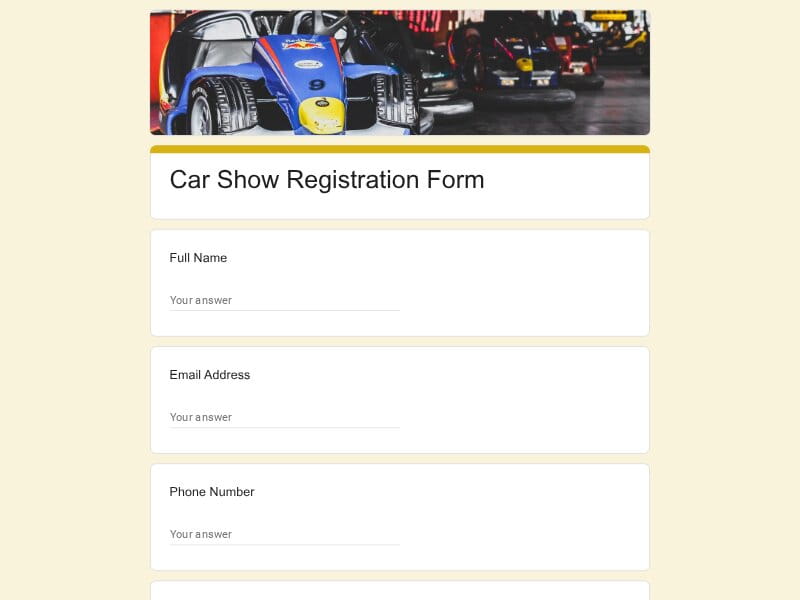 Preview
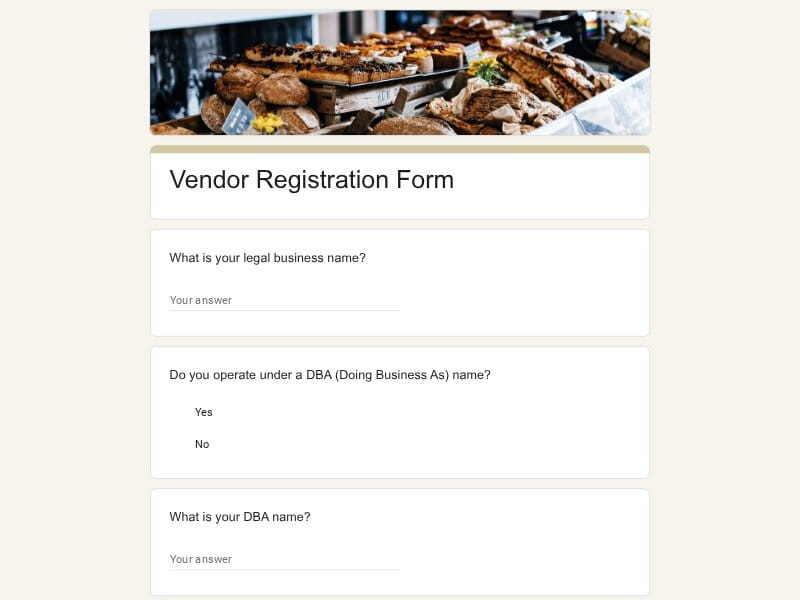 Preview
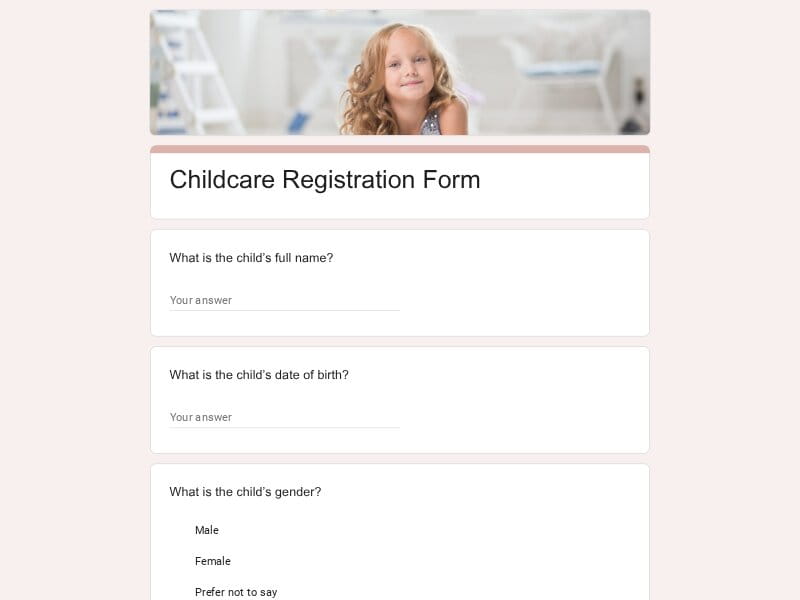 Preview
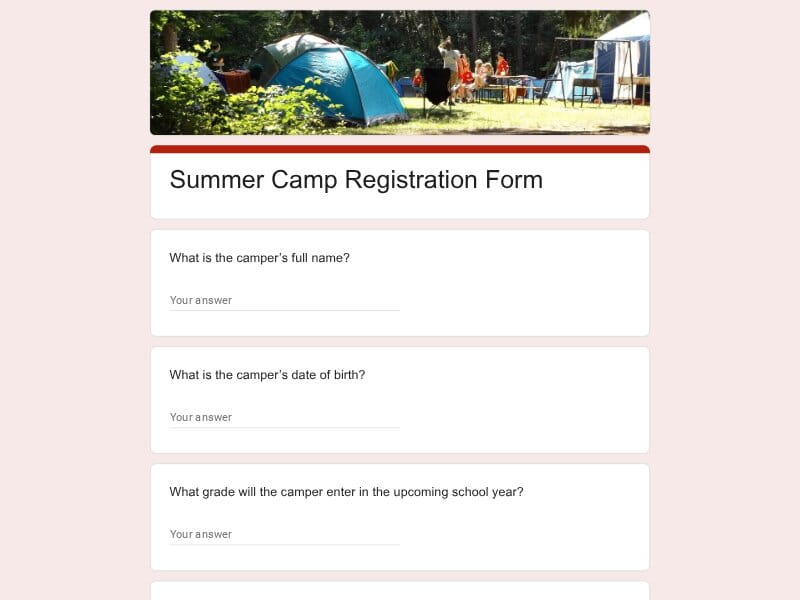 Preview
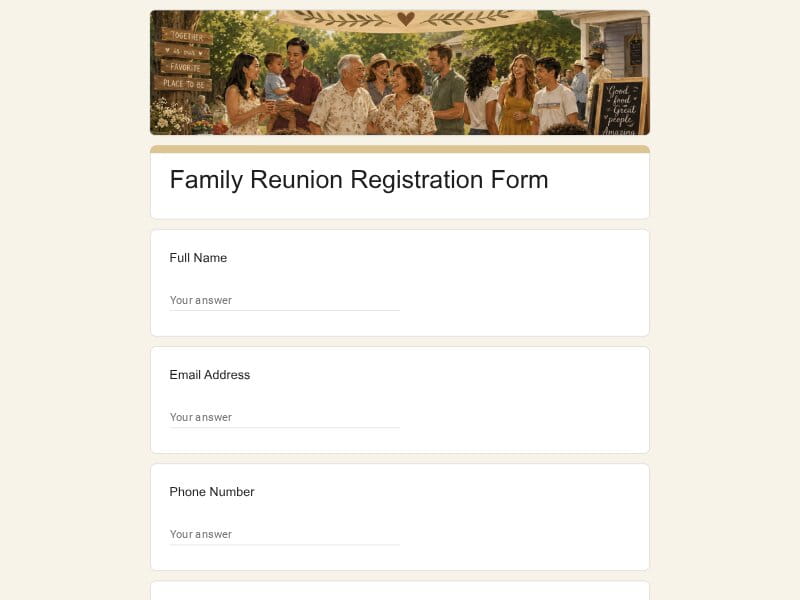 Preview
 Preview
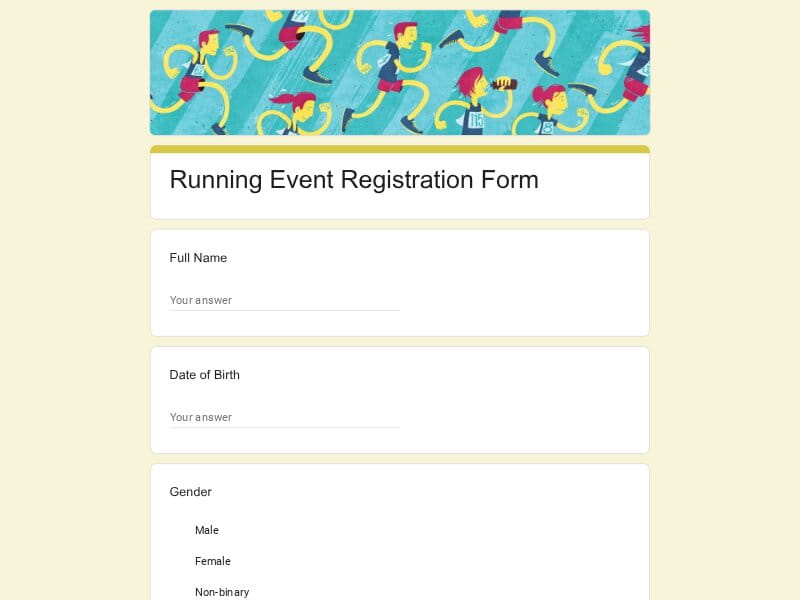 Preview
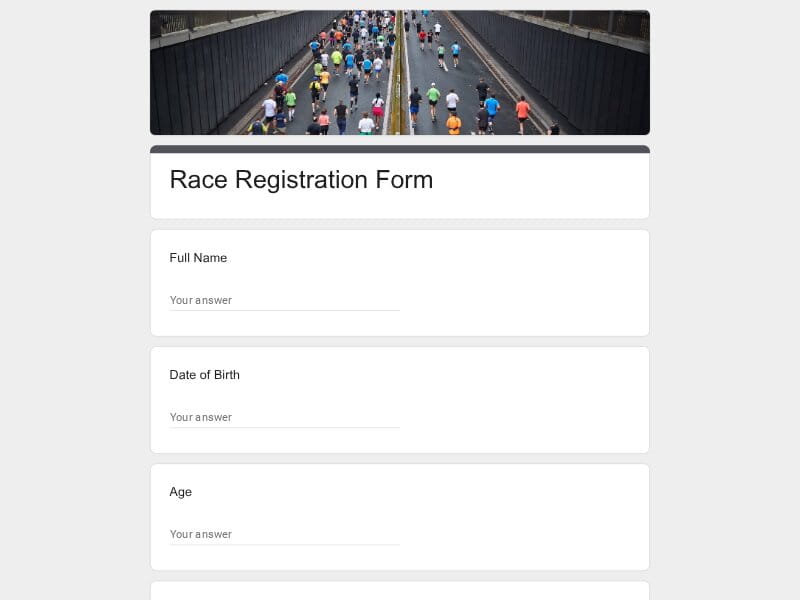 Preview
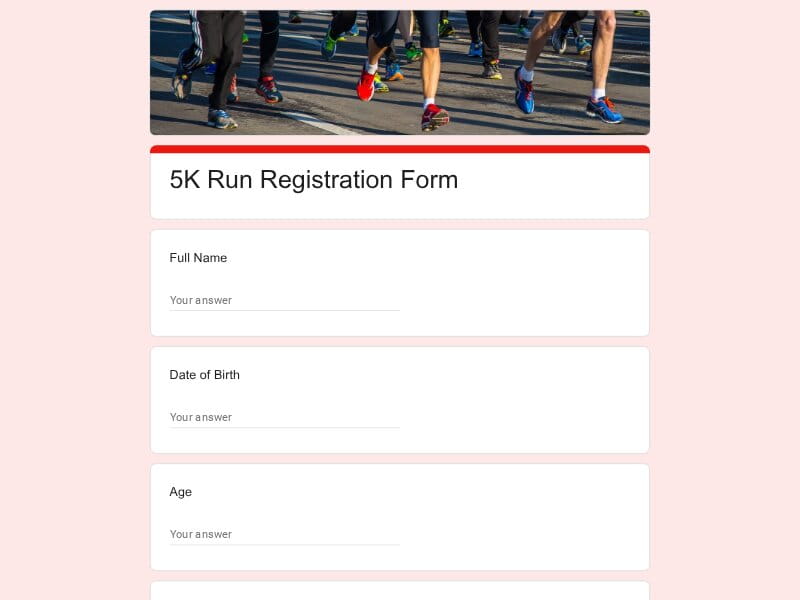 Preview
A registration form is a structured set of questions that gathers key information from people signing up for an event, program, service, or organization — capturing details like contact info, preferences, and eligibility in one place.
In Google Forms, these forms work online, can be shared via link or QR code, and automatically organize every response into a Google Sheet, making follow-up and coordination straightforward from day one. Beyond events and memberships, they're used everywhere a business or team needs to onboard, enroll, or verify someone before they participate.
A well-structured registration form does more than collect a name and email. Depending on the context, it must gather the right data in the right order, reducing friction during onboarding, attendance tracking, and post-event operations.
The goal is not volume of data — it’s structured completeness: every field should exist for a reason and directly support segmentation, logistics, or follow-up workflows.
| Section | What to include | Example questions |
|---|---|---|
| Contact & Identity | Basic identity and communication fields. These ensure every participant can be uniquely identified and contacted. Typically required across all use cases. |
What is your full name? What is your email address? What is your phone number? What is your date of birth? |
| Participant Profile | Context-specific attributes used for segmentation, grouping, or eligibility checks (e.g., age group, role, grade, profession). |
What is your current job title? Which company or organization do you represent? What grade level are you in? What is your skill or experience level? |
| Attendance & Selection Preferences | Defines participation choices, session selection, or logistical preferences. Reduces operational uncertainty. |
Which session will you attend? Do you prefer morning or afternoon workshops? Which track do you want to join? Do you require a specific group assignment? |
| Logistics & Requirements | Operational details such as dietary needs, shirt sizes, equipment requirements, or accessibility accommodations. |
Do you have dietary restrictions? What is your T-shirt size? Do you require any equipment support? Will you need transportation assistance? |
| Consent & Legal Agreements | Required agreements, waivers, and compliance confirmations. Often implemented as mandatory checkbox fields. |
Do you agree to the terms and conditions? Do you consent to photo/video recording? Are you confirming that the information provided is accurate? Do you accept the liability waiver? |
| Accessibility & Special Notes | Open-ended field for accommodations or personal considerations that don’t fit predefined categories. |
Is there anything we should know to support your participation? Do you require accessibility accommodations? Are there medical considerations we should be aware of? Any additional notes for organizers? |
| Referral & Source Tracking | Helps measure acquisition channels and marketing effectiveness across campaigns or community sources. |
How did you hear about this event? Were you referred by someone? Did you find us via social media, email, or website? Which platform led you here? |
Google Forms is widely used for registration workflows because it combines simplicity, scalability, and integration without requiring technical setup or paid infrastructure.
A working registration form can be created and shared in minutes using only a Google account, making it ideal for time-sensitive events and rapid deployment.
Supports sections, conditional branching, and customizable question types, allowing forms to adapt dynamically to different participant paths and use cases.
Every submission is structured into Google Sheets in real time, enabling filtering, sorting, exports, and integration with downstream workflows.
Multiple team members can edit forms and monitor responses simultaneously without version conflicts, improving operational coordination.
Forms work seamlessly across devices without requiring app installation or login from respondents, making mobile and on-site submissions frictionless.
Share via link or QR code instantly, enabling distribution across email, social media, printed materials, or in-person event check-ins.
Choose your platform and follow the steps to get your Registration form live in minutes.
Install Google Forms from the App Store. You'll need iOS 16 or later.
Open the app and sign in with your Google account. This is required to save and share forms.
Tap the template in the list.
Edit any question, add your flavor options, update the design theme and colors — all from within the app.
Tap the Share button (top right). Choose how to distribute your form:
The template is instantly copied to your Google Drive — no manual setup needed. You must be signed in to your Google account for this to work.
Auto-copied to Google DriveEdit question text, add your actual flavor options, adjust dropdowns, and personalize the form to your bakery.
Toggle "Required" on essential fields — name, email, order date, and quantity — so no key detail is missed.
Use Google Forms' built-in sharing to distribute your form via URL, embed it on a site, or generate a printable QR code.
Responses appear in real time in the Responses tab, or link to Google Sheets for a full sortable order spreadsheet.
Make sure you're signed in to Google before clicking the button. The form opens directly in Google Forms in your browser — no app download needed.
Scan to use Google Forms on iPhone or iPad!