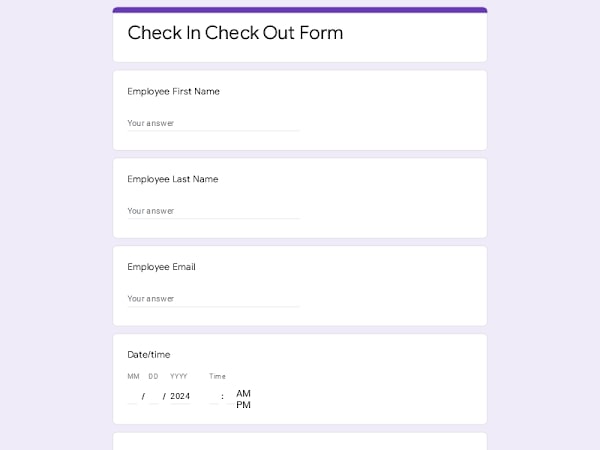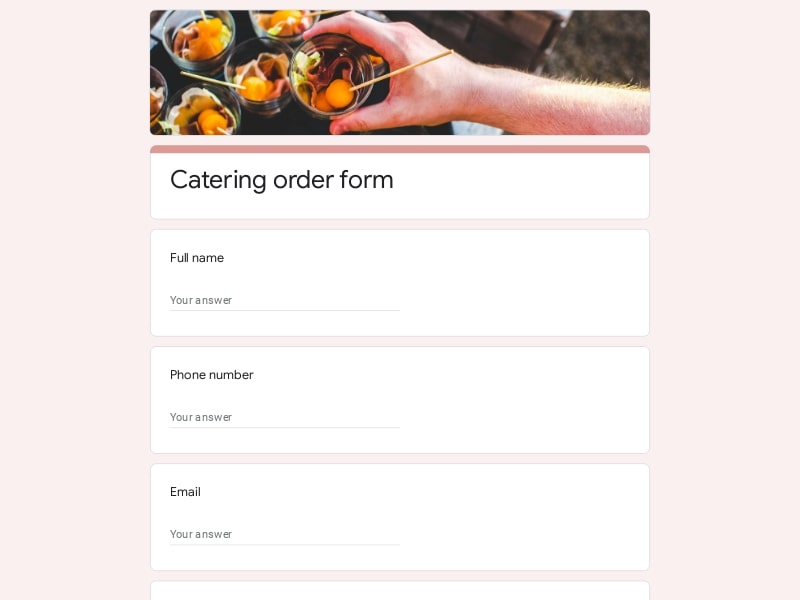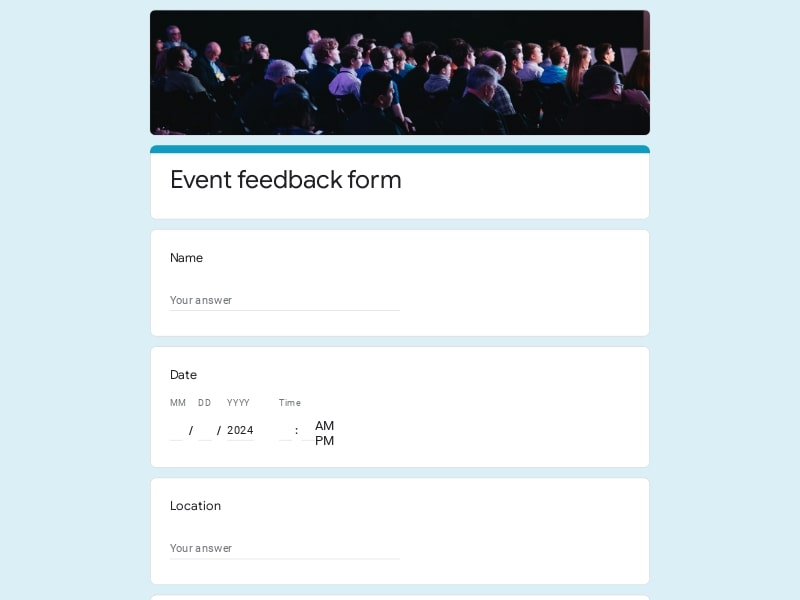

These are Google Forms templates for event registration — each one comes with pre-written questions, organized sections, and automatic response collection in Google Sheets. Copy a template, adjust what you need, and your sign-up form is ready to share by link or QR code.
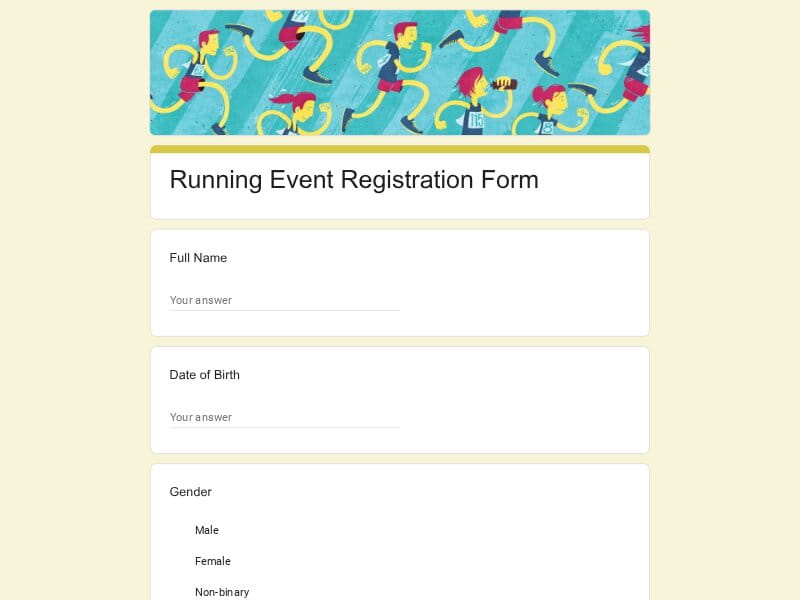 Preview
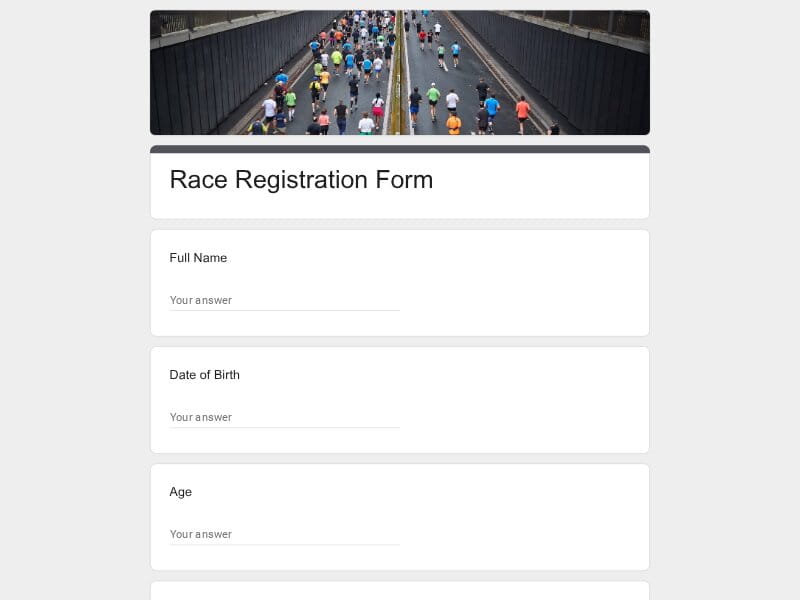 Preview
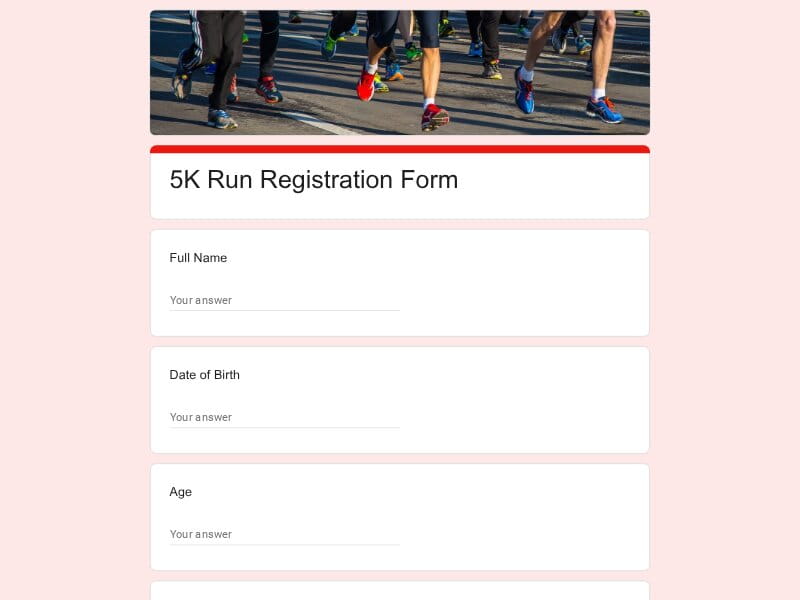 Preview
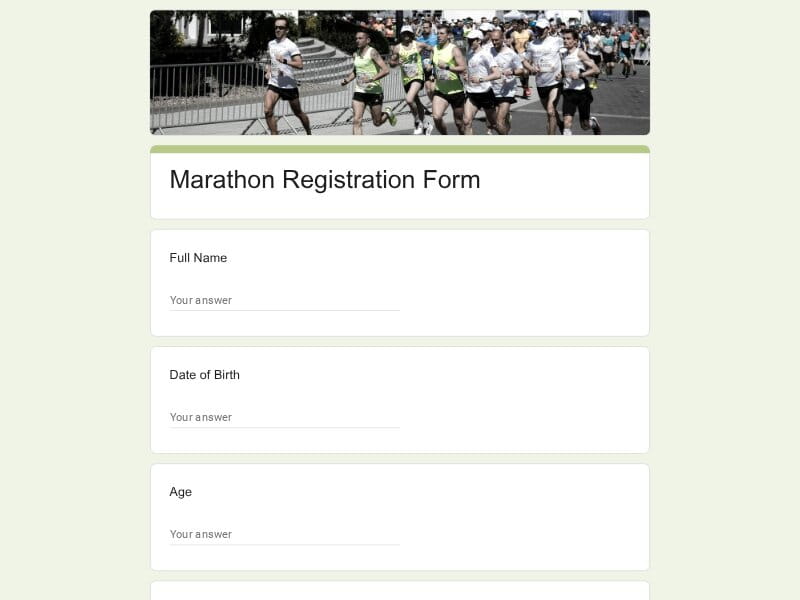 Preview
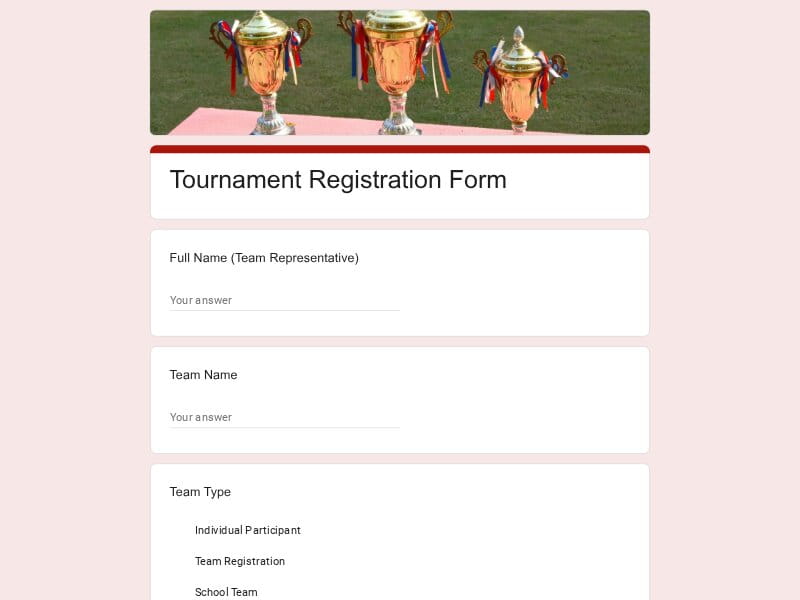 Preview
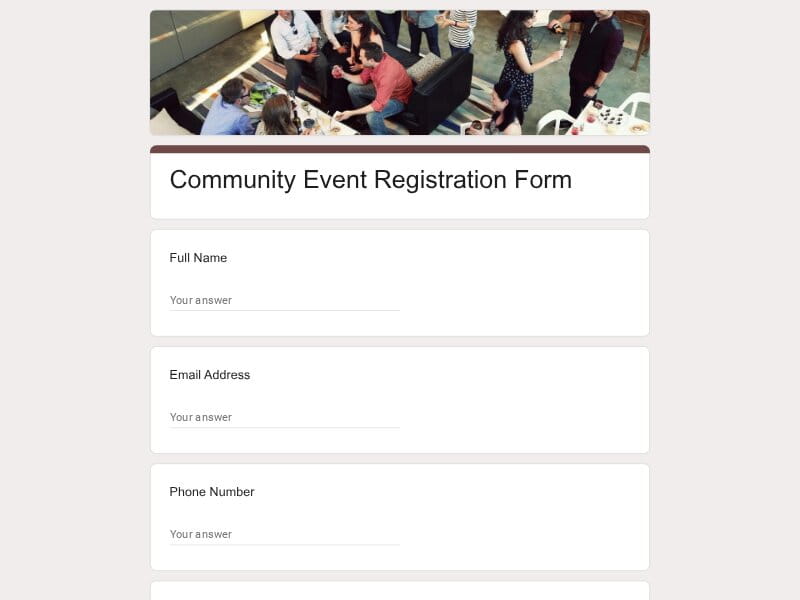 Preview
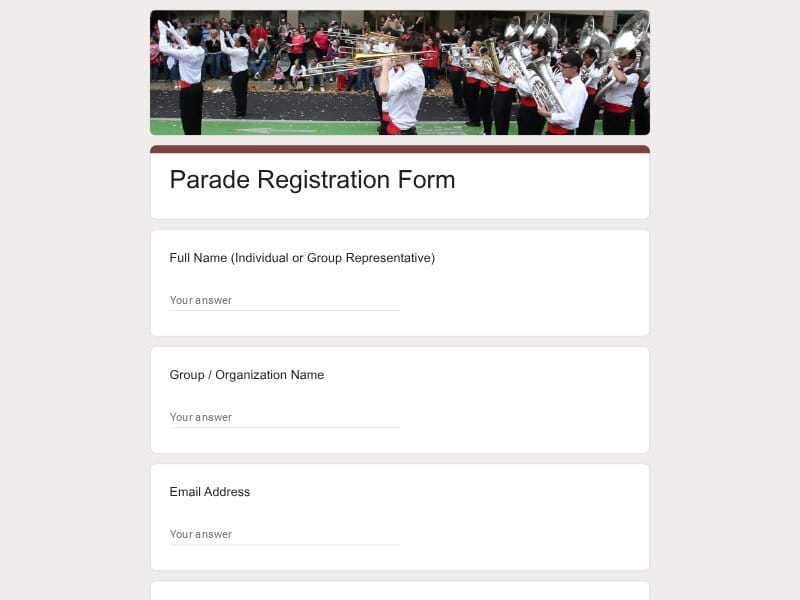 Preview
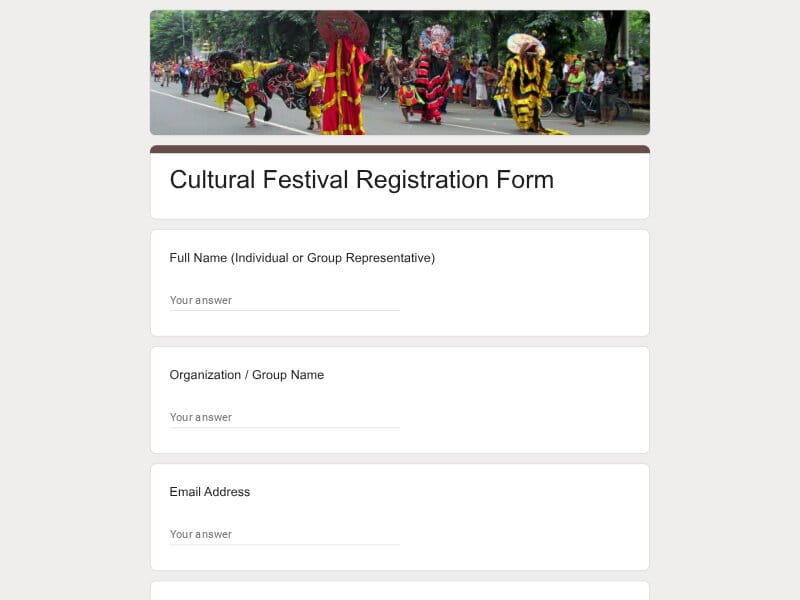 Preview
 Preview
An event registration form is an online form that collects attendee information before an event — name, contact details, session choices, dietary requirements, or group size. The templates on this page are built in Google Forms, so every submission automatically populates a linked Google Sheet and can be exported to Excel or PDF with no extra setup. They cover the full range of event types: from a single-session workshop to a multi-day conference, a community fundraiser, or an internal team offsite.
Most sign-up forms ask for a name and email — and that's where they stop. A form built for real event management collects the right information upfront so you're not chasing attendees for details later. The sections below cover what a complete, editable registration form should include, with sample questions for each.
| Section | What to Include | Example Questions |
|---|---|---|
| Attendee Details | Core identity fields — who is registering and how to reach them |
|
| Group Registration | Fields for registering multiple people in one submission — useful for teams and corporate groups |
|
| Event Preferences | Session selection, format (in-person vs. online), and track choices |
|
| Logistics & Special Requests | Meal preferences, T-shirt size, parking, language needs — anything that affects planning |
|
| Ticket Type / Pricing Tier | A dropdown or multiple choice to distinguish ticket categories — pairs with a payment link in the confirmation |
|
| Consent & Waivers | Required checkbox for terms, photo/media release, or age confirmation — especially important for non-profits, youth events, and public programs |
|
| Referral & Discovery | Optional field to track how attendees found the event — useful for marketing and event management reports |
|
| Post-Registration Info | A confirmation message with next steps, calendar link, or instructions — set once inside Google Forms |
|
There's no shortage of form tools, but Google Forms has a practical edge for event sign-ups: it's free, requires no account from respondents, and connects directly to Google Sheets — so your attendee list is always live and ready to act on. Here's what makes it a solid choice for registration specifically.
Every submission populates a linked spreadsheet in real time. You always have an accurate headcount without manual imports or CSV juggling — and the sheet is shareable with co-organizers instantly.
Google Forms generates a short link and a QR code for event registration automatically. Print the QR on a poster, embed the link in an email invite, or post it on social — same form, any channel.
Response data is always export-ready. Download as Excel for finance or reporting teams, generate a PDF summary for records, or work directly in Google Sheets — no conversion steps needed.
Unlike a printed form or a PDF, you can update questions, fix wording, or add a new section after the form is already live. Existing responses stay intact — useful when event details change last minute.
Show or skip sections based on previous answers. A VIP attendee sees different questions than a general admission guest. Online registrants skip the parking question. Respondents only answer what's relevant to them.
Set a maximum number of responses to cap attendance, or configure an automatic close date. Once the limit is hit or the deadline passes, the form stops accepting submissions — no manual monitoring needed.
Restrict the form to people within your organization by requiring a Google Workspace login. Useful for team events, employee onboarding, or anything that shouldn't be open to the public.
Change colors, upload a banner image, and adjust the form header to match your event or organization's branding. The design stays consistent across desktop and mobile without any CSS knowledge.
No subscription, no per-response fees, no seat limits. Google Forms is free for personal accounts and included in Google Workspace for teams, schools, and non-profit organizations.
Respondents don't need a Google account to fill out a public form. Familiar interface, mobile-optimized layout, and no sign-up friction mean more people actually complete the registration.
Choose your platform and follow the steps to get your event registration form live in minutes.
Install Google Forms from the App Store. You'll need iOS 16 or later.
Open the app and sign in with your Google account. This is required to save and share forms.
Tap the template in the list.
Edit any question, add your flavor options, update the design theme and colors — all from within the app.
Tap the Share button (top right). Choose how to distribute your form:
The template is instantly copied to your Google Drive — no manual setup needed. You must be signed in to your Google account for this to work.
Auto-copied to Google DriveEdit question text, add your actual flavor options, adjust dropdowns, and personalize the form to your bakery.
Toggle "Required" on essential fields — name, email, order date, and quantity — so no key detail is missed.
Use Google Forms' built-in sharing to distribute your form via URL, embed it on a site, or generate a printable QR code.
Responses appear in real time in the Responses tab, or link to Google Sheets for a full sortable order spreadsheet.
Make sure you're signed in to Google before clicking the button. The form opens directly in Google Forms in your browser — no app download needed.
Choose a ready-made template for your needs and customize it in just a few minutes.
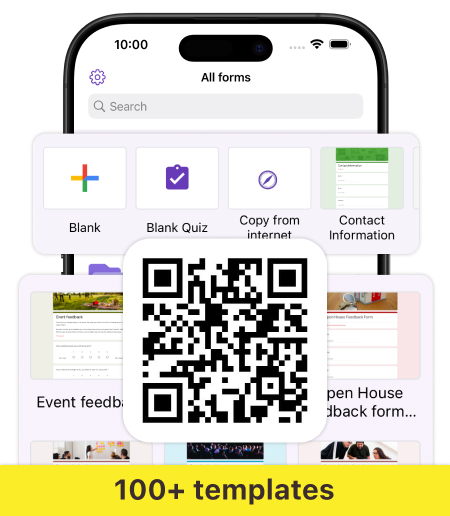
Scan to use Google Forms on iPhone or iPad!